MX51 EFTPOS and iPad/Android Tablet POS Troubleshooting
Connecting to EFTPOS
-
On the POS make sure you are in the Point-Of-sale software.
-
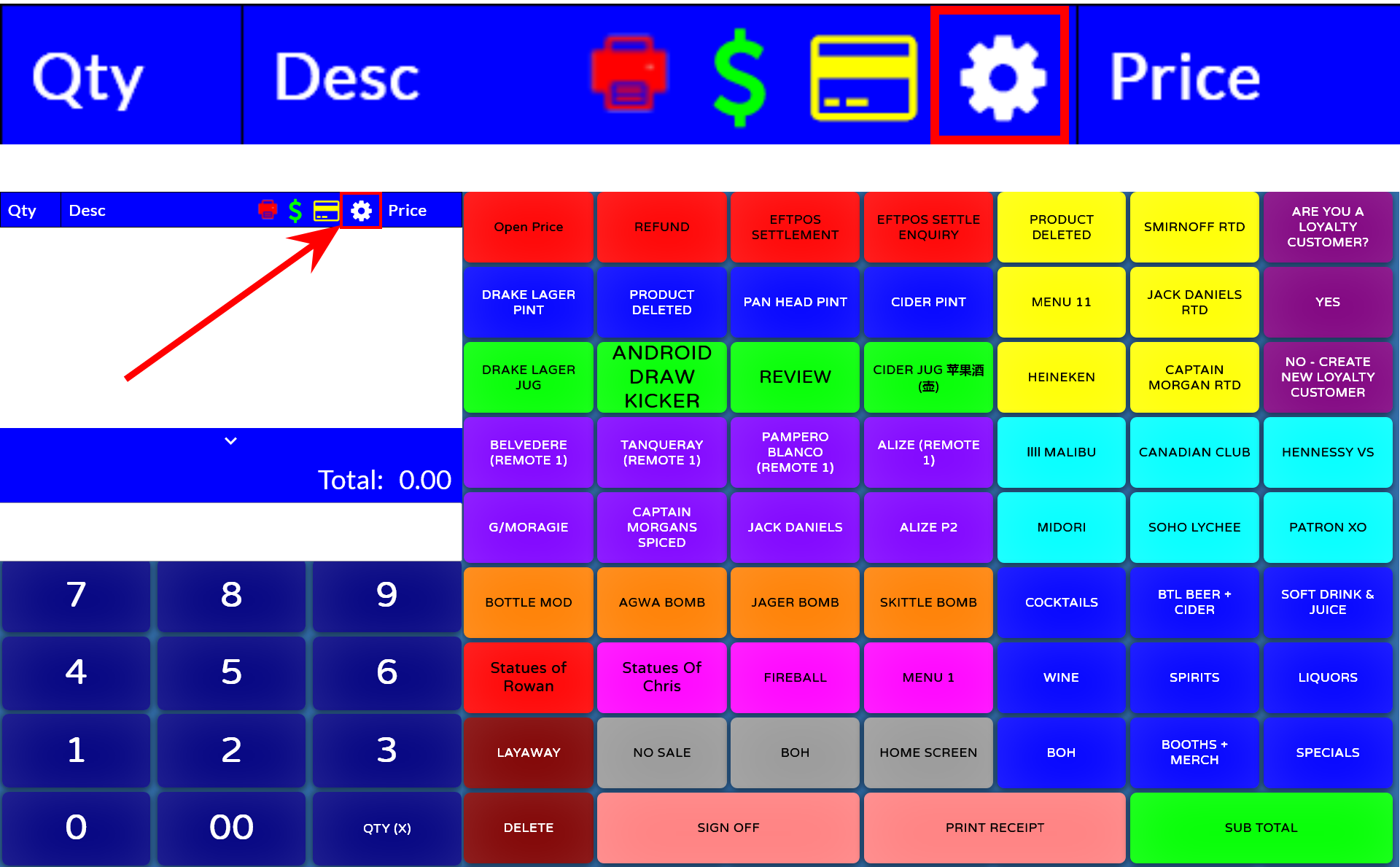
Sign on as an operator and navigate to the "White cog" at the top of the screen.
-
If it does not show the white cog then you need to make sure you are logged on as someone who has back-office permission.
-
Often it will be a user called "ADMIN"
-
If it asks for a password its likely "1"
-
If need be, call CloudHQ4 support on 03 9908 5805
-
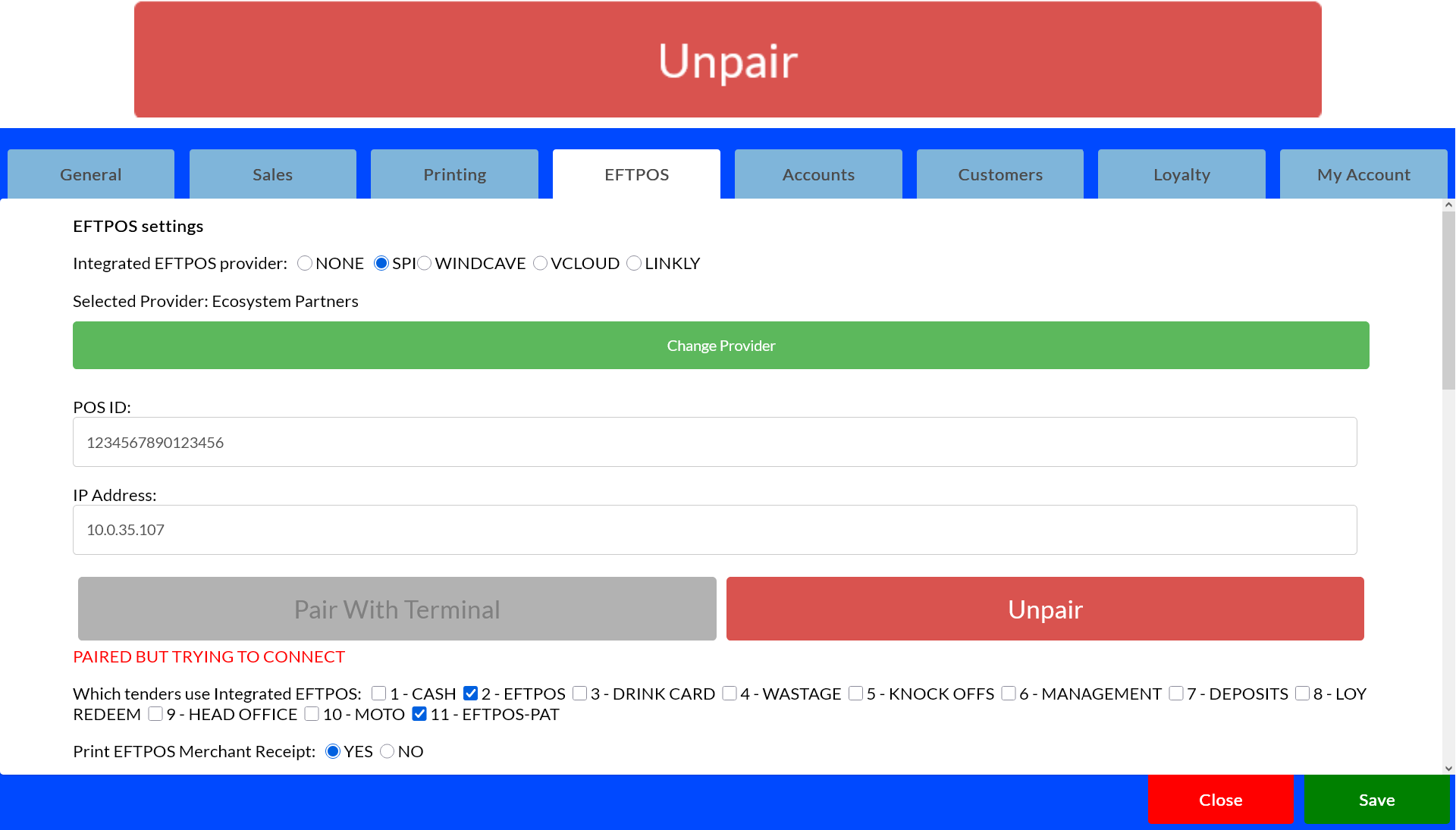
Select the EFTPOS tab.
-
If the settings say that the software is already paired, please unpair first by simply clicking on the red Unpair button
-
Make sure the Integrated EFTPOS Provider is set to SPI
-
The selected provider is set to "Ecosystem Partners"
-
That the tablet is on the same Wi-Fi as the EFTPOS device
-
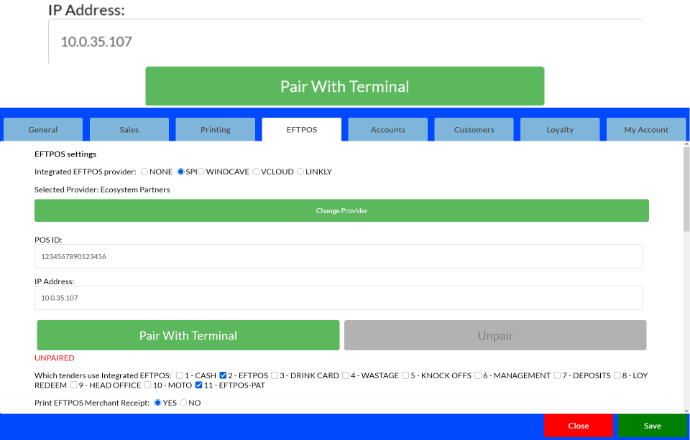
Type in the "IP Address" as shown on the EFTPOS device
Click Here to get the EFTPOS IP Address
-
Press the "Pair With Terminal" selection
-
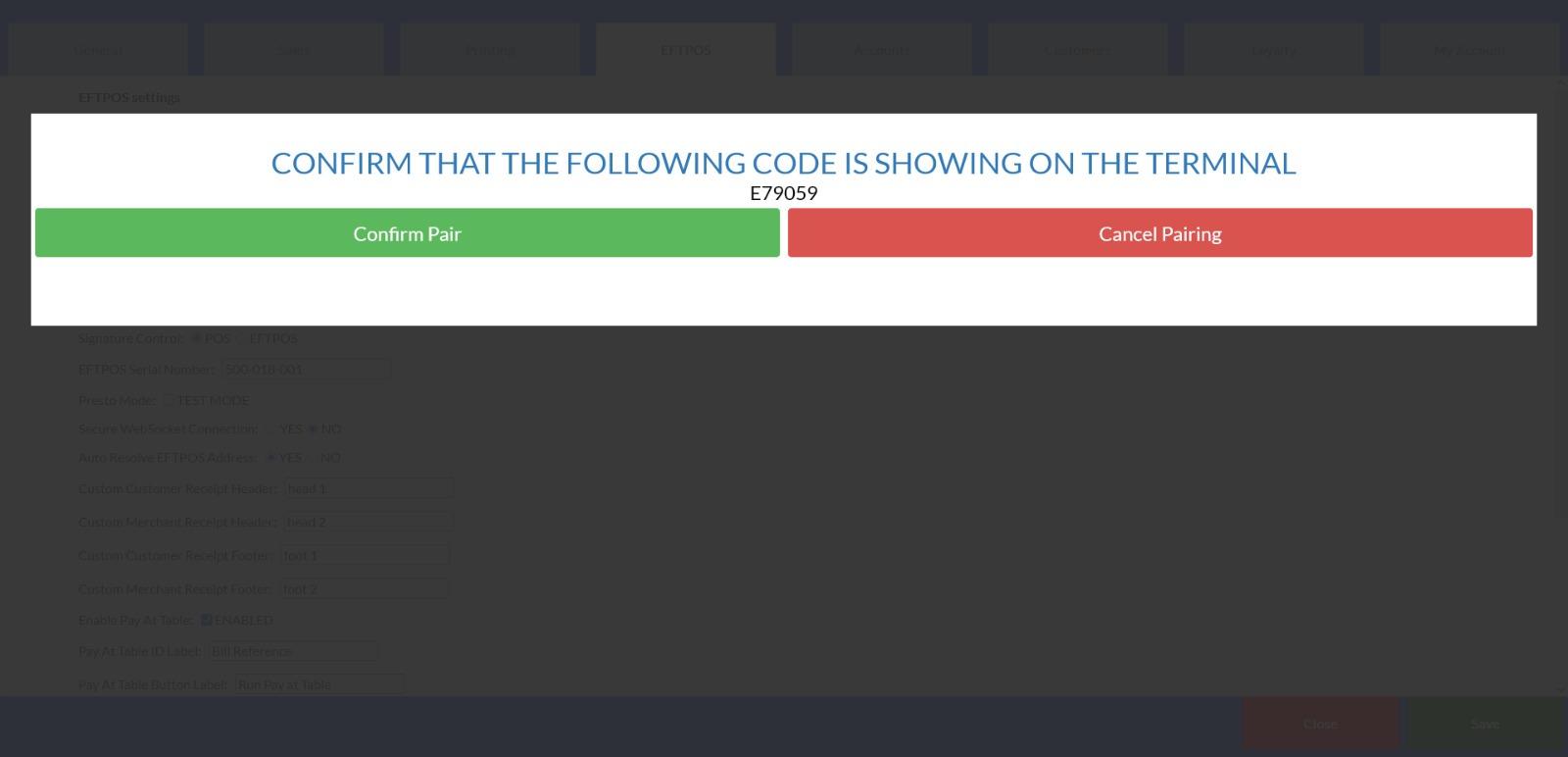
Check the code on the EFTPOS matches the one on the POS screen
-
Press the "Confirm" button if it does on both the POS terminal and the EFTPOS device
-
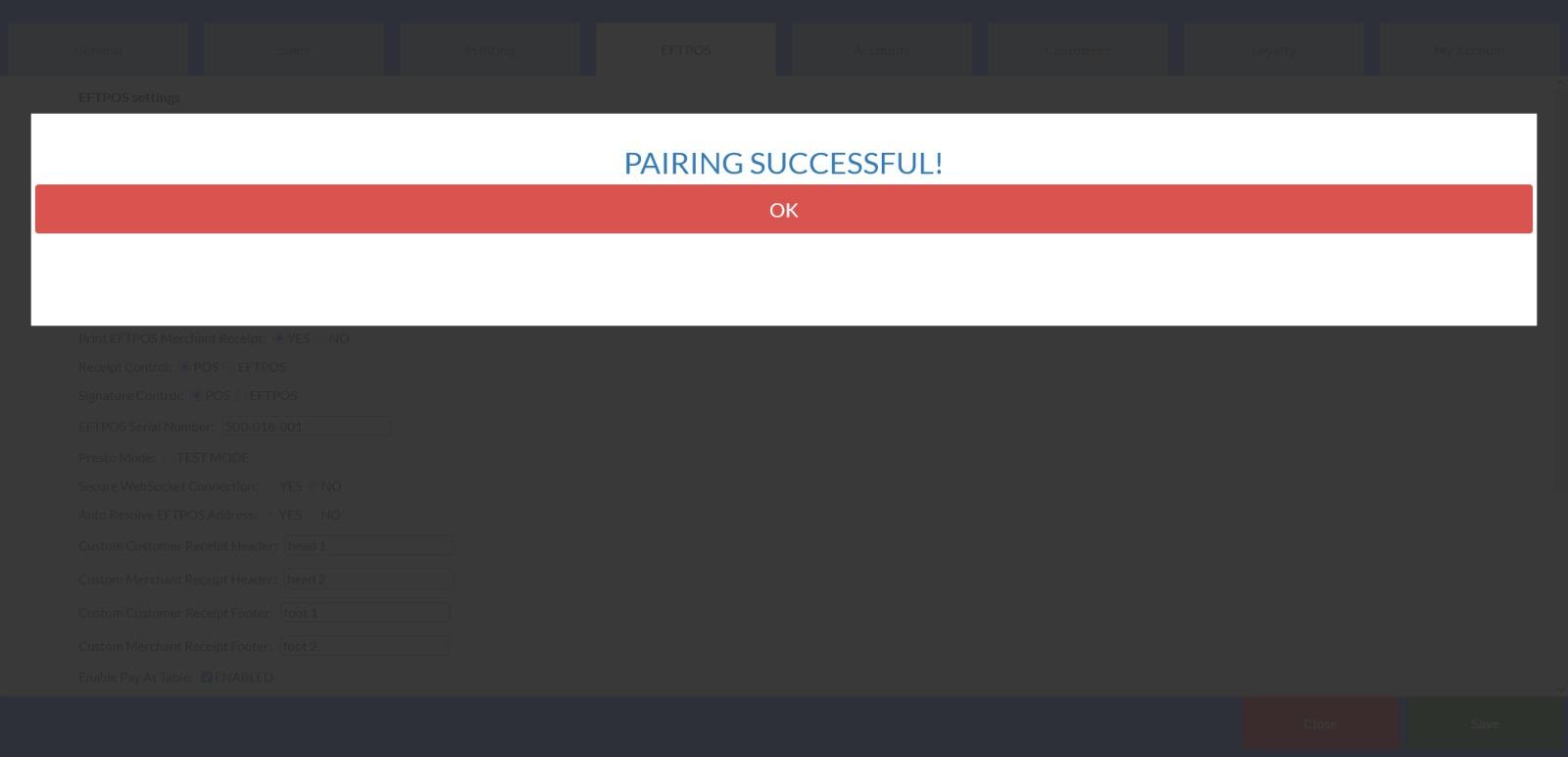
If the pairing was successful you should see this page and press OK
-
Carry out a Test transaction to check connection
-
Any issues call MX51 support on 02 9000 1777 or CloudHQ4 03 9908 5805