MX51 EFTPOS and Touchscreen POS Support
-
Press the Menu button on you EFTPOS
-
Press the Manage POS Pairing button
-
If there is already a POS Paired on the screen, press on the Connected POS
-
Press Unpair at the bottom of the page
-
In the popup press Unpair again
-
Now press New POS Pairing ; followed by Simple Payment Integration
You should now see the pairing information
If for any reason it does not then reboot your EFTPOS and restart this process
HOW TO REBOOT YOUR EFTPOS:
Please also note that this EFTPOS can be
connected via Ethernet or WIFI and if it is displaying “Wired Ethernet” as the
Network SSID that you must make sure that the Wi-Fi option in the EFTPOS
settings is turned off.
-
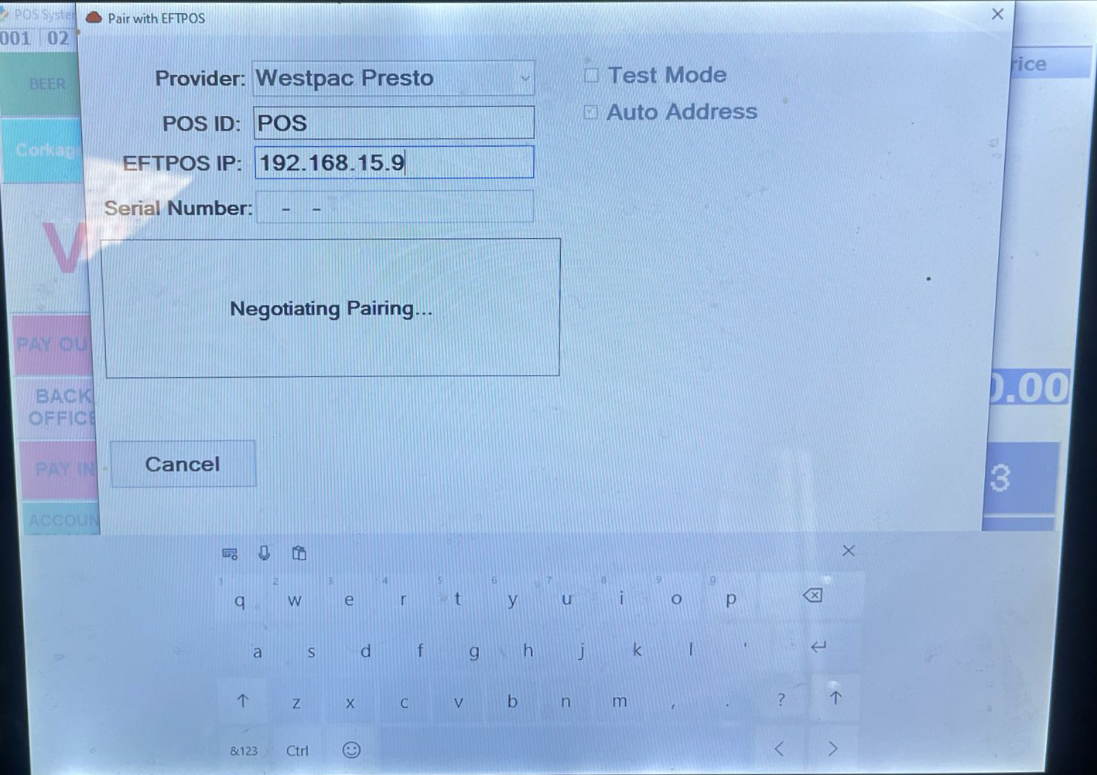
Sign on as an operator and navigate to the "Manager Screen" or where the PAIR button is
-
Look for a button with the word "PAIR"
-
The screen to the left will appear
Sign on as an operator and navigate to the "Manager Screen" or where the PAIR button is
Look for a button with the word "PAIR"
The screen to the left will appear
-
If it says that it is “Paired” please UNPAIR first and save.
-
Please then enter the IP address shown on the EFTPOS into the "EFTPOS IP" field
-
Make sure the Test Mode is not ticked
-
Auto Address mode may be ticked and if it is then you will need to enter the Serial Number details
Please then enter the IP address shown on the EFTPOS into the "EFTPOS IP" field
-
Make sure the Test Mode is not ticked
-
Auto Address mode may be ticked and if it is then you will need to enter the Serial Number details
-
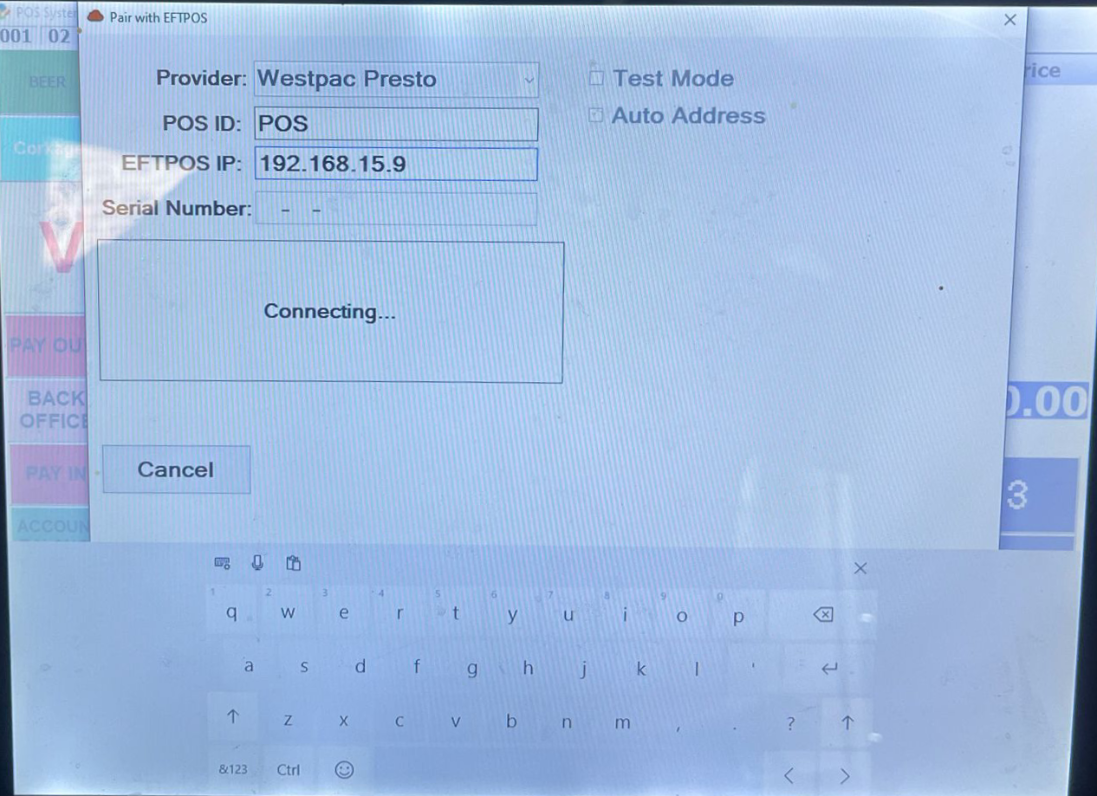
Select "Save" followed by "Pair" and you should get a screen saying "Connecting"
-
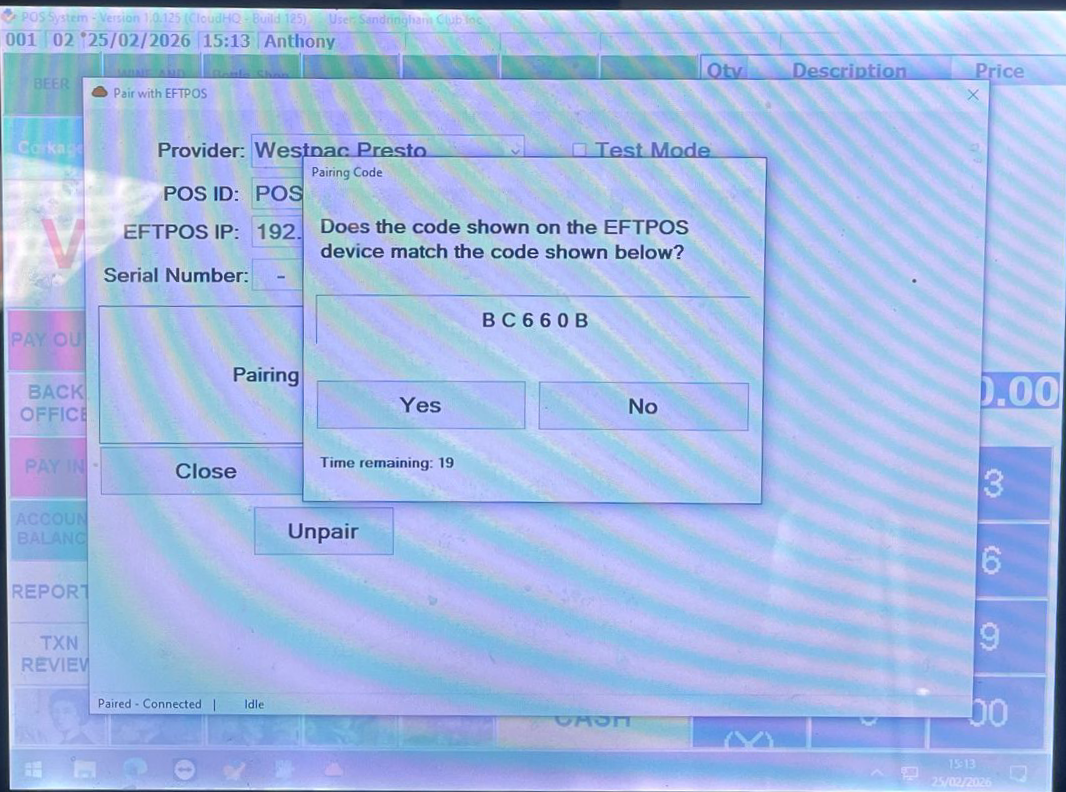
Screen will say "Does the code shown on the EFTPOS device match the code shown below?"
-
If it does, press YES on the POS screen
Screen will say "Does the code shown on the EFTPOS device match the code shown below?"
If it does, press YES on the POS screen
-
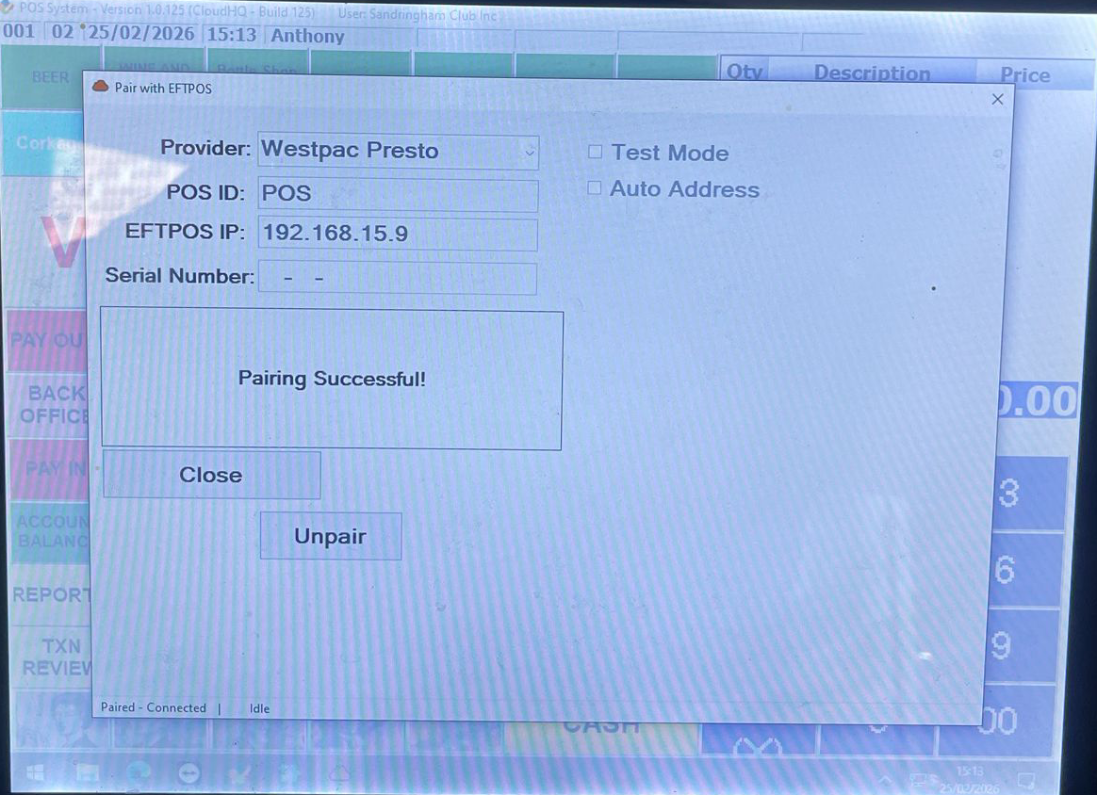
Screen should say "Pairing Successful!"
-
Press "Close" and you can now take sales.
Screen should say "Pairing Successful!"
Press "Close" and you can now take sales.